From the story to a playable scene
Game Bridge is the runtime and gameplay toolset included with Storyteller 3. Author in Studio, push the selected story scene into SceneData, bind its characters and game objects, then use Conditions and StorytellerEvents to drive dialogue, UI, audio, props and your own systems.
- Open Tools > Ruchmair > GameBridge > Game Systems for the component catalogue.
- Create Assets > Create > Game Bridge > SceneData. In the intended Storyteller scene, click Use In Game or open Tools > Ruchmair > GameBridge > Push Scene Data.
- Assign Linked Scene Data, include the characters and media/personality data required by the game, then choose Push to Scene Data.
- Add an Interaction, configure its SceneData entries and bind characters with InteractableCharacter. Assign text, audio and route UI outputs as needed.
- Invoke BeginInteraction from an input action, button, collision event or Condition. Test the conversation and its Conditions in Play mode.
After story edits, save and push again. Matching node UIDs and types reuse existing runtime node assets to help retain references; removed or changed nodes still need their bindings checked. One Interaction can hold multiple SceneData entries with scene-specific setup and Conditions.
Story Runtime (Interaction)
Interaction processes localized dialogue, actions, routes, audio, Conditions and authored item references/events. It manages participants, scene selection, node visits and the active narrative session.
- Assign the required SceneData entries and configure the controlling character and presentation outputs.
- Use
BeginInteraction(character)for a conversation,BeginMonologue(character)for a solo session, orBeginScene()/BeginAt(nodeUID)for an explicit entry. - Call
MoveNext()to continue; usePause(),Resume()andEndSession()for their specific lifecycle actions.
A compatible BeginInteraction call can add a participant to an existing conversation. Use InterruptWith for a suspend/resume interruption workflow. Your scene objects and UI decide how the processed story appears.
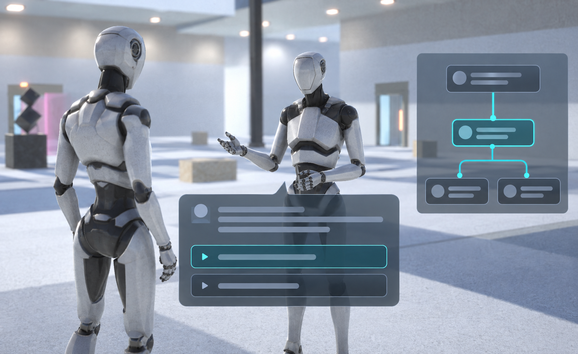
Interactable Character
Bind a player or NPC GameObject to the character authored in Storyteller. The binding resolves by character UID within the assigned SceneData.
- Attach InteractableCharacter to the player or NPC.
- Assign SceneData and select the corresponding authored character.
- Pass that component to the Interaction entry method your game uses.
Character data can include localized profiles, evolution relationships and personality traits. The runtime exposes named trait queries and updates. A participant joining a compatible conversation must resolve to the same source SceneData.
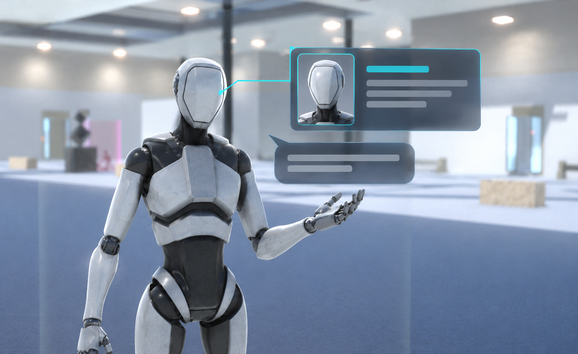
Conditions
Conditions decide when configured actions run. Use general Conditions for an Interaction-wide behavior, node-specific Conditions for a particular node, or standalone Conditions explicitly processed by your game.
- Choose Value from and select a public member or shared variable. Traverse returned objects and collection elements with the member picker.
- Choose the comparison and Compare with: a constant, another live member or an explicitly owned shared variable.
- Add calls to On condition met. Multiple bool checks use AND; all checks must succeed.
- Configure processing mode, update rate and Repeat deliberately. Process the Condition through its owning Interaction or an explicit
ProcessConditionDatacall.
Processing and timing
Caller Driven evaluates when its owner or caller processes it. A standalone Self Driven, Once Per Frame Condition begins monitoring after ProcessConditionData is called. Enabling a component alone does not start a new monitor. Interaction-owned Conditions retain the Interaction lifecycle.
Once Per NodeData follows the Interaction’s node-visit lifecycle. Auto Start explicitly invokes the event when processed; Use Time chooses a timed path such as node Delay, Duration, Realtime Delay or a custom wait. Use Time is an alternative to the bool-check path. Use a separate guard Condition when a timed action also needs a live-state check.
With Auto Start and Use Time off, an empty bool-check list does not invoke events. Repeat can cause repeated spawning or advancement; guard those actions with session/visit identity.
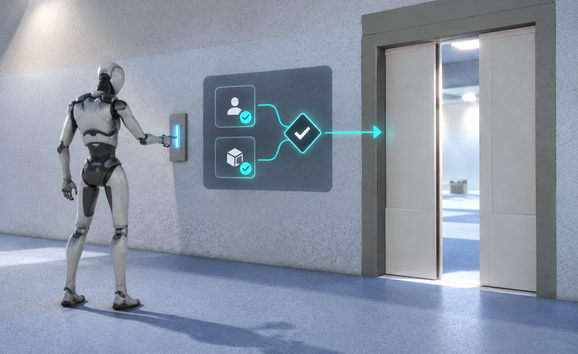
StorytellerEvents: connect the actions
StorytellerEvents execute configured public member calls in order. Select an exact supported method overload, set a writable property/field, or read a property/field into a named result. Targets can be scene objects/components, static types, prior results or shared runtime variables.
Create a UI bubble from calls
- Call the supported
UnityEngine.Object.Instantiate(Object, Transform, bool)overload and name its resultbubble. - Target that result as GameObject, get its TextMeshPro component and name the returned component
label. - Call
Interaction.GetHistoryDialogueAtIndex(0)for the latest history dialogue and name its resultdialogue. - Target
labelas TMP_Text and assign its text fromdialogue. Activate the bubble and refresh layout/scrolling as needed.
Use Share result on to retain a return value on a Condition for another event sequence. These shared variables reset between Play sessions and are not automatically persisted. Local result names last for one execution, and producers must run before consumers.
For each item iterates a snapshot of a collection. Stop on failure stops later calls and runtime listeners after a failure; it does not roll back changes already made. Disabled calls are skipped, while an enabled blank call reports a warning.
Supported member calls and player builds
Private members, constructors, open generics, indexed properties and ref/out signatures are outside the selectable action surface. Returned tasks and enumerators are ordinary result values; the event runner does not await them or start coroutines. Preserve reflection-only bindings where necessary for IL2CPP builds and test the target player.
World Item
Bind a physical GameObject to the stable UID of an authored World Item. Item references, gameplay actions and runtime state all resolve to that identity.
- Author the World Item and its initial state in Storyteller, then push the scene.
- Attach WorldItem to its scene object and bind SceneData and the item UID.
- Configure events such as OnReferenced, OnTaken, OnUsed, OnOwnerChanged or OnConsumed to drive the visual and gameplay response.
Taking an item changes possession; ownership is separate. Methods such as Take, GiveTo, Drop, PlaceIn, TransferOwnershipTo, Use and Consume update narrative state. Events control physical movement, visibility and animation. Read the full item workflow →
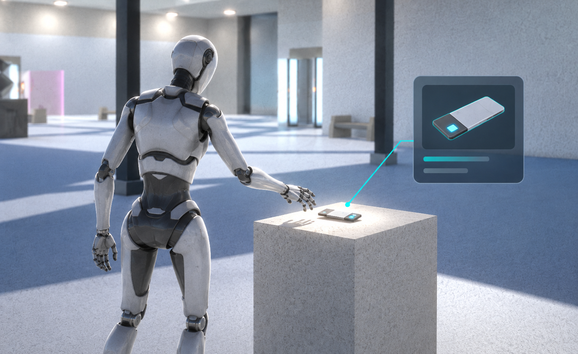
Interactable Object
Make a door, switch, terminal or ordinary prop respond to input, Conditions and events. It can also select a configured story route.
- Attach InteractableObject to the prop and configure its Conditions/events.
- Call Interact from your input system, or enable proximity interaction with an assigned target and key.
- Configure the optional world prompt and route selection when needed.
Icon visibility distance and interaction distance are separate settings. A visible prompt does not guarantee the interactor is close enough to activate the object.
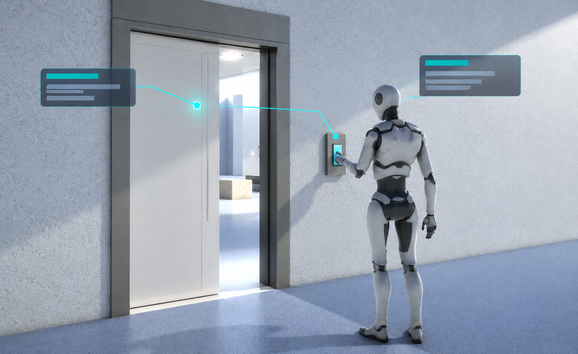
World Item Runtime Manager
An optional scene-level access point for inventory bridges, UI, animation and gameplay queries.
- Add the manager to a scene-system object and register its SceneData sets.
- Use
GetItemState,GetWorldItemorGetWorldItemGameObjectwith the appropriate scene and item UID. - Use InitializeAll or the scene-specific initialization methods, and ResetScene / ResetAll when starting fresh state.
The manager provides access to item state and scene bindings; design the inventory UI and physical behavior using your game’s own objects and event calls.
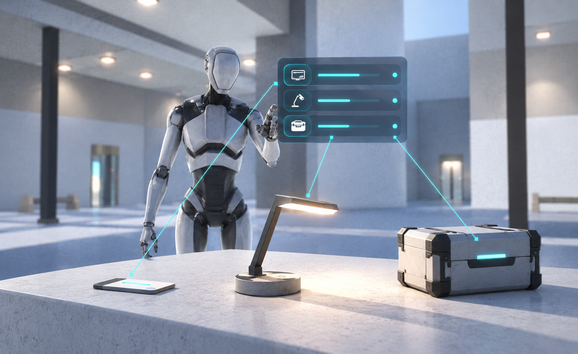
Collision Trigger
Detect collider entry/exit and forward interaction availability to compatible receivers. Automatic entry interaction is optional.
- Attach CollisionInteractionTrigger to the object that owns the trigger area and assign the Interaction.
- Configure colliders and the Unity trigger-physics setup; add compatible receivers to the intended targets.
- Enable automatic interaction on entry only when your game should begin the conversation immediately.
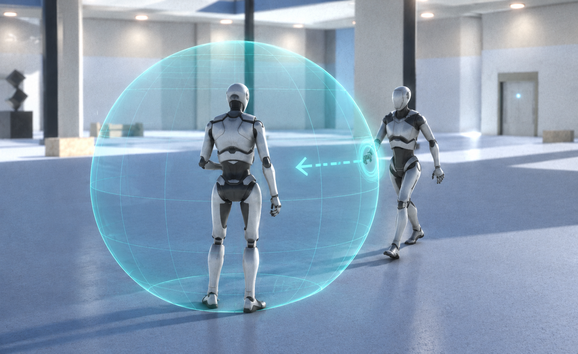
Collision Receiver
Receive range notifications on a character, World Item or ordinary interactable object.
- Attach CollisionInteractionReceiver to the target with the relevant collider.
- Configure enter/exit StorytellerEvents to show prompts, update availability or invoke game behavior.
- Test both entering and leaving the area, including how your UI behaves when the object becomes unavailable.
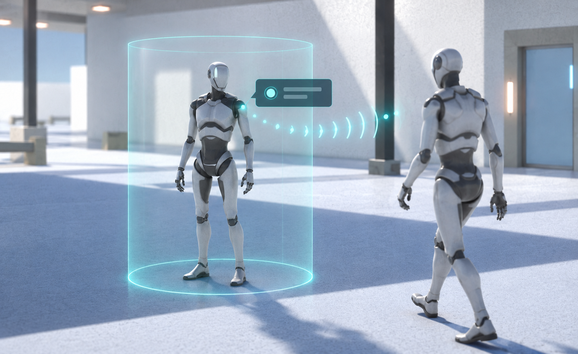
Route Click Listener
Select a branch of the current story route from a UI button or a clicked world object.
- Assign Interaction and the intended Route Number.
- Connect a UI button’s onClick to SwitchRoute, or connect a Ray Click event on a collider-equipped world object.
- Activate the intended dialogue route and keep the Interaction unpaused while selecting it.
This component selects a route output. Use Ray Click directly with other event targets for world-object clicks that do not involve a dialogue route.
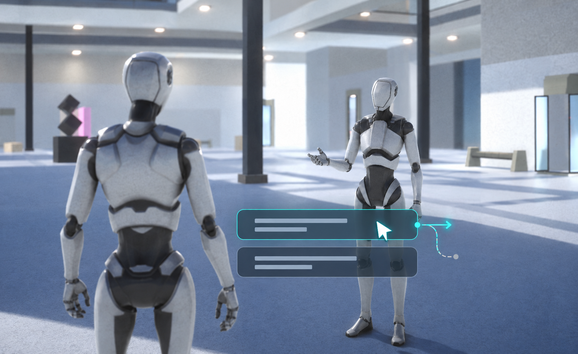
Ray Click
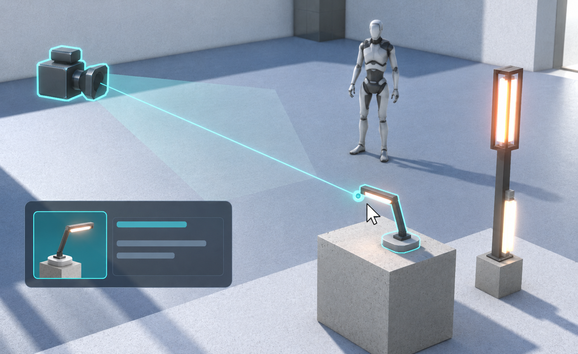
Detect camera ray hits on an object’s colliders and invoke click or hover events, independently of an active dialogue route.
- Attach RayClick to a collider-equipped prop and configure the camera/raycast settings.
- Connect click and hover StorytellerEvents to World Item actions, InteractableObject.Interact or your own public functions.
- For a clickable route option, connect On Click to RouteClickListener.SwitchRoute.
Routes, convergence and sessions
Route choices use localized titles pushed from Storyteller. Choose an output with GoToRoute(int). Convergence routes automatically continue; non-player routes and Auto Move Next follow their configured runtime state.
Turning off Show Route UI / WillShowUI suppresses built-in presentation but does not select a branch or advance an ordinary player route. A custom route canvas should check control state, CurrentNodeIsRoute, CurrentRouteWillShowUI and that the route is not in convergence. Configure a separate path to hide it when those requirements stop being true.
Link nodes support configured loop counts, route switching and per-exit events. Use this authored loop workflow for return paths. For runtime conversations, distinguish joining a participant with BeginInteraction, interrupting with InterruptWith, pausing/resuming, ending one participant and ending the session.
Session and node-visit identities help reject stale delayed actions. In a phone UI, guard message creation and MoveNext so one visit produces one message and a callback from an earlier conversation cannot advance the current one.
Save Manager
Persist configured GameObjects, components and supported data with ordered JSON save/load operations and named slots.
- Choose the targets, components and supported members your game needs to save.
- Order prerequisites before dependent systems. Save and load process configured targets from top to bottom.
- Choose a folder and slot, then connect Save and Load to UI, input or StorytellerEvents. Configure automatic lifecycle behavior only when desired.
The save pipeline supports atomic file replacement, backups, callbacks and transform restoration options. Coordinate physical object state with your gameplay systems. Shared event variables and arbitrary generated UI require an explicit persistence strategy.
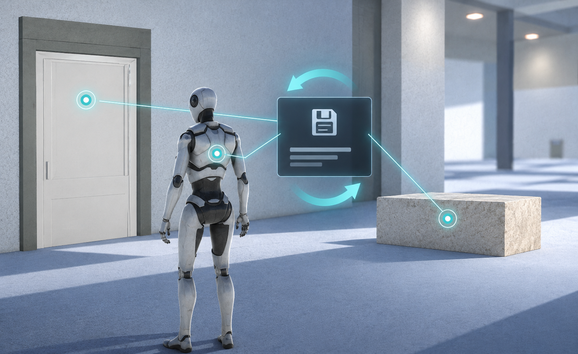
Interaction Save Manager
Persist narrative progression and runtime World Item state separately from the generalized game-state pipeline.
- Assign the target Interaction and choose a slot with SetActiveSlot.
- Call Save to capture narrative state, then Load to restore it. Enable Load On Start only when intended.
- Coordinate the slot and load order with SaveManager and the SceneData/runtime setup.
Narrative restoration uses node identities and can retain a pending load until required runtime data is ready. Runtime item state is restored without replaying the current item event. Test a save mid-conversation, after a choice, after an item action and across scene changes.
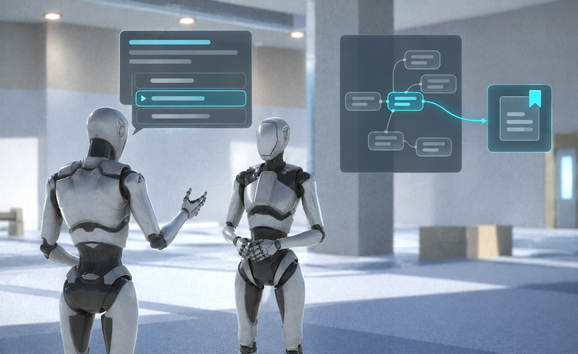
Runtime history
History covers dialogue, actions, routes, links, environments, endings and other processed nodes. Records include scene/node identity, session/conversation/visit context and localized presentation information. Use it for a dialogue log, UI reconstruction or gameplay queries.
World Item gameplay history records actual applied item events and state changes. Authored item history describes the story graph’s planned events; the two views answer different questions. Compare the item history views →
Inspect the setup and diagnose problems
Open Tools > Ruchmair > GameBridge > Game Bridge Function Reference for supported functions, explanations and examples. Condition Code View presents Conditions and event calls as readable configuration; search or filter it, and open bound Conditions from Timeline markers. Hierarchy badges and scene annotations help locate components and incomplete bindings.
A Condition does nothing
Check the processing owner and initial ProcessConditionData call, Disabled/Repeat/Invoked state, complete bool checks and explicit Auto Start or Use Time. Check whether a node-specific Condition is attached to the node actually being visited.
Dialogue is missing or an old version appears
Save and repush the correct story scene. Check SceneData entries, pushed characters, character UID bindings and the active participants. A compatible BeginInteraction call can add a participant at the intended story point.
Repeated UI, stale callbacks or hidden route choices flash
Review Repeat and duplicate input bindings. Guard delayed actions by session/visit identity, and include CurrentRouteWillShowUI and convergence/control checks in custom route UI Conditions.
An event warns about a blank call or missing member
Use the warning’s object, event field and call number to find the call. Select a valid Action and arguments, or disable/remove it. Earlier named results must be produced successfully before they are used.
Build a small example first.
Test one conversation, one item and one save slot before expanding the setup.